Official Product Guide & Documentation
Plans & System Capacity
Standard Plan
High-capacity digital paging engineered for rush-hour crowds.
Included Daily Quotas & Real-Time Capacity:
500 Tokens / Day
Tokens created daily (resets at 00:00 UTC)
2,500 Alerts / Day
Web push notification deliveries (up to 5 devices per token)
50 Live Pagers
Connected simultaneously at peak rush hour in real-time
Universal Features (Included in All Plans):
No credit card required • Live in 60 seconds
Everything you need to know about TokenPager.
The complete operational blueprint: from instant 3-step cashier workflows and full-screen PWA setup on iOS/Android, to multi-device group alerts and customized PIN security.
Table of Contents & Quick Navigation
Select any section to jump directly to detailed guides and walkthroughs.
Cashier assignment & 4-step customer paging cycle
Full-screen app setup on iOS, Android & Desktop
Alert up to 5 family phones simultaneously
Personalized order notes overriding generic alerts
Keypad presets, +5m bumps & zero-anxiety timers
Industry presets, promotional ad banners & security
500 order quota, 2,500 alert deliveries & scaling
Daily Operations Workflow
TokenPager replaces legacy physical coaster buzzers with an intuitive 4-step digital queue. There is zero hardware baggage to recharge, sanitize, or replace.
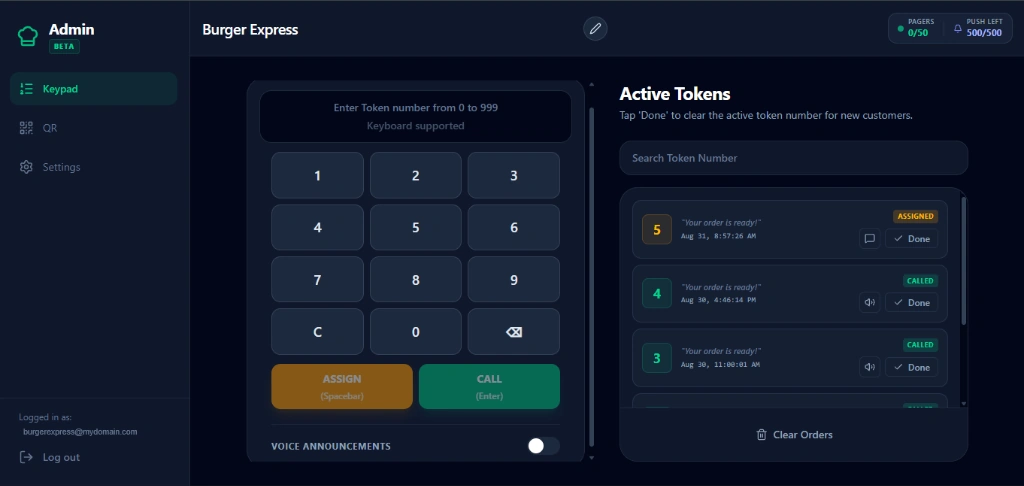
Assign Token
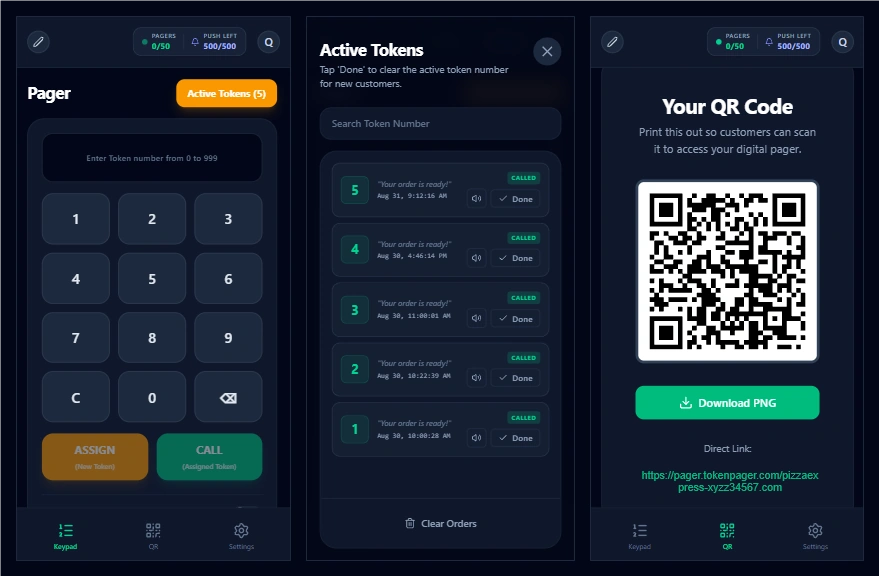
Cashier enters a token number (e.g. 1 to 999) and hits ASSIGN (or presses Spacebar).
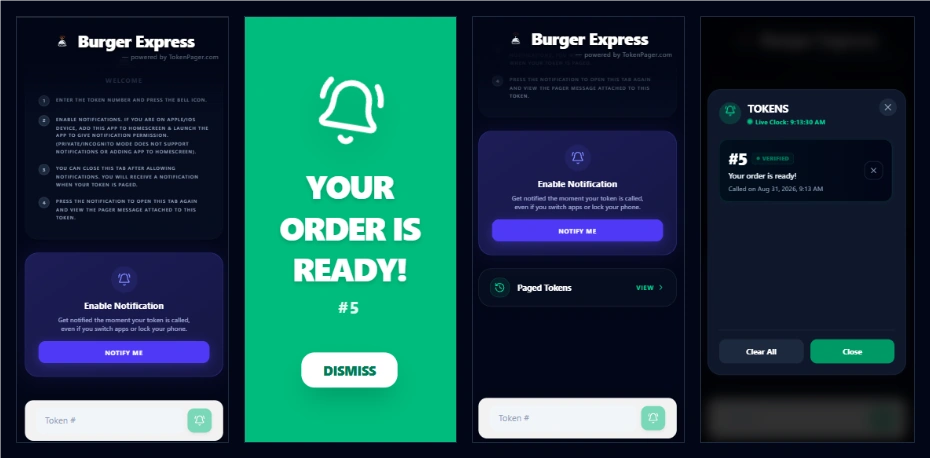
Customer Connects
Customer scans the counter QR code, types their token number, and taps Notify Me to enable lock-screen alerts.
Call Order
When the order is ready, staff hits CALL (or Enter). The customer's phone rings, vibrates, and flashes green.
Clear Token
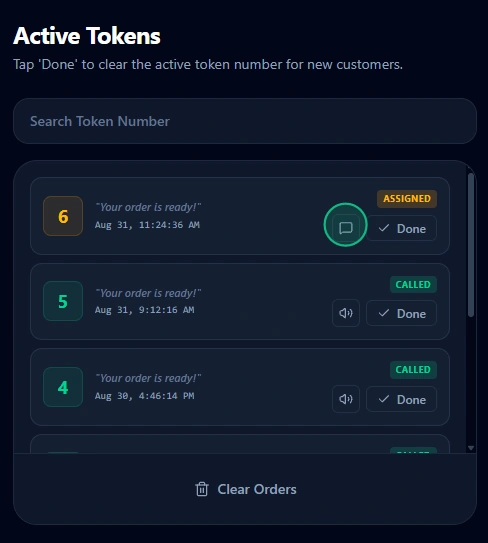
Once handed over, staff taps Done (✓) in the Active Orders list to clear the slot for the next customer.
PWA Installation Guide (Mobile & Desktop)
TokenPager is engineered as a **Progressive Web App (PWA)**. It installs directly onto phones, tablets, POS monitors, and laptops without visiting app stores.
2.1 Mobile Devices (iOS Safari & Android Chrome)
Add TokenPager to your smartphone home screen for full-screen operation and native lock-screen alerts.
Apple iOS (Safari)
iPhone & iPad Home Screen App
- Open Admin Dashboard in Apple Safari.
- Tap the Share icon ( Share) on the bottom navigation bar.
- Scroll down and select "Add to Home Screen".
- Tap Add in the top-right corner.
💡 Pro-Tip: Adding to Home Screen unlocks background Web Push Notifications on iPhones!
Android (Chrome & Samsung Internet)
PWA Native Launcher Shortcut
- Open Admin Dashboard in Google Chrome.
- Tap the Three-Dots Menu ( Menu) in the top-right corner.
- Tap "Install app" or "Add to Home screen".
- Confirm by tapping Install.
💡 Installs an authentic native launcher shortcut with hardware vibration & sound support.
2.2 Desktops, Laptops & POS Terminals (Chrome, Edge & Mac)
Run TokenPager as a dedicated standalone desktop application on counter stands and kitchen display monitors.
For cashier counters, food truck order windows, and kitchen preparation stations, running TokenPager as a dedicated desktop app prevents accidental tab closures and maximizes screen space.
- Open your Admin Dashboard in Google Chrome or Microsoft Edge.
- Click the Install App icon (⊕) located on the right side of the address bar.
- Click Install in the confirmation popup.
- TokenPager will launch immediately as an independent desktop application on your Windows, Mac, or Chromebook desktop taskbar.
Borderless Window Mode
Zero address bar • Zero browser tabs • Instant taskbar launch
Multi-Device Family & Group Tracking
With traditional hardware coaster buzzers, only 1 person in a dining party holds the pager. If they step away to park the car or use the restroom, the rest of the group is left waiting in uncertainty.
Simultaneous Party Broadcast
TokenPager allows up to 5 family members, friends, or coworkers to scan the same QR code and link to the exact same order token.
- When staff taps CALL, all 5 smartphones ring and vibrate at the exact same moment.
- Zero friction: no login or shared accounts needed.
- Real-time sync ensures everyone returns to the pickup counter together.
Live Web Push packets sent simultaneously over Google (FCM) & Apple (APNs) push gateways.
Custom Pager Messages
Deliver bespoke, personalized instructions for specific orders without changing your venue's global ready preset.
Individual Order Message Override
Need to direct a specific customer to a side counter, announce table readiness, or notify a prescription pickup? In the Admin Keypad’s Active Orders panel, tap the highlighted Message Icon (💬) next to any assigned token.
Estimated Wait Times & Live Timers
Give customers clear time expectations on their smartphones with live countdowns, quick queue bumps, and zero-anxiety messaging.
Keypad Presets & Active Token Controls
Staff can assign wait times at the moment of token creation, or adjust times on active orders as rushes evolve—all with zero friction.
Tap [10m] or [20m] for instant assignment, or pick custom intervals up to 180m.
Tap +5m to quickly extend wait time by 5 minutes, or tap the Clock icon to input a new estimated ready time.
Live Countdowns & Zero-Anxiety Transitions
Customers see live progress directly in their web browser or installed PWA. If kitchen or prep exceeds the estimate, TokenPager smoothly reassures the guest instead of showing alarming negative times.
Expected ready by 11:10 AM
Countdowns recalculate in real time every minute and instantly update when admins bump the queue.
Never displays anxiety-inducing negative numbers (e.g. -3m overdue). Transitions smoothly to keep guests calm and ready.
Prevents customer counter crowding if an order takes a few extra minutes for finishing touches.
Keypad Presets
Default 10m & 20m buttons plus custom selector for rapid assignments.
Real-Time Sync
Updates sync to customer phones over Mercure SSE without page refreshes.
Toggle On / Off
Turn it off in Settings anytime to return to a clean, minimal pager display.
Workspace Settings & Security
Tailor TokenPager to match your venue's exact terminology, and configure the security mode that matches your customer traffic.
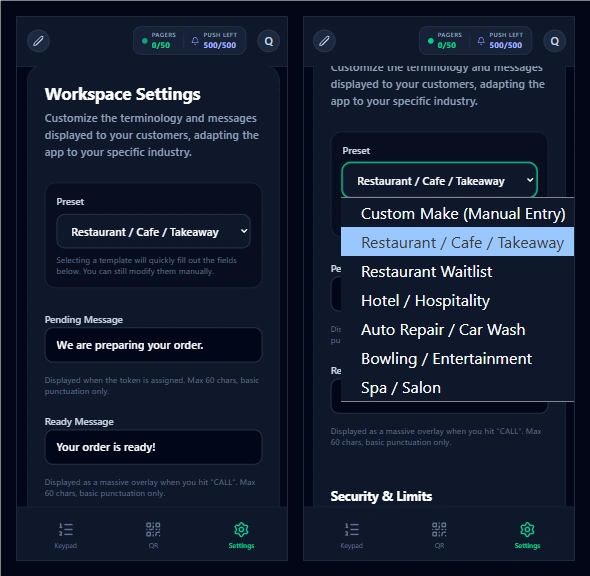
6.1 Preset & Terminology Settings
Choose built-in industry templates or define customized pending and ready messages.
Different businesses have different customer communication styles. TokenPager includes quick presets:
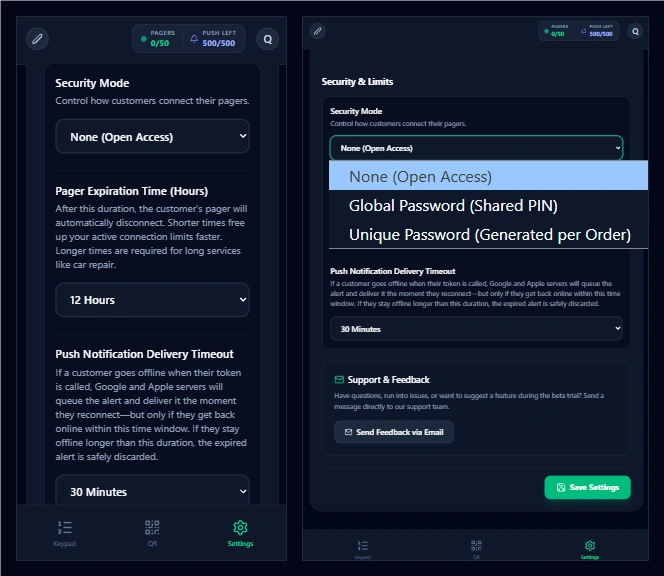
6.3 Security Modes & PIN Verification
Select how customers connect to prevent unauthorized tracking.
Capacity, Daily Quotas & Scalable Architecture
TokenPager is engineered with high-throughput in-memory Valkey caching and real-time Server-Sent Events (SSE), built to power busy weekend rushes effortlessly.
Generous Hybrid Quotas
Every standard TokenPager account includes a generous daily quota that resets automatically every midnight UTC:
Ready to modernize your guest paging?
Create a free, contact-free customer pager workspace in seconds. Eliminate plastic coaster buzzers and phone spam today.